

Projects & Billing
What is a Project?
Section titled “What is a Project?”A Project is your organization's workspace in the Perplexity API Portal. It allows you to:
- Manage billing and payment methods for API usage
- Create and control API keys for accessing the Perplexity API
- Invite team members and control their permissions (optional)
- Monitor usage and costs across all your API keys
Prerequisites
Section titled “Prerequisites”Before getting started, make sure you have:
- A Perplexity account (sign up at perplexity.ai)
- Admin permissions for billing and API key management
- A credit card ready for payment setup (you won't be charged initially)
Accessing the API Portal
Section titled “Accessing the API Portal”Navigate to console.perplexity.ai to access your project. The left-hand sidebar is divided into two sections:
- Project: Settings, Members, Billing (Admins only), API keys, Files
- API Playground: Search API, Agent API
Creating and Managing a Project
Section titled “Creating and Managing a Project”To set up your organization:
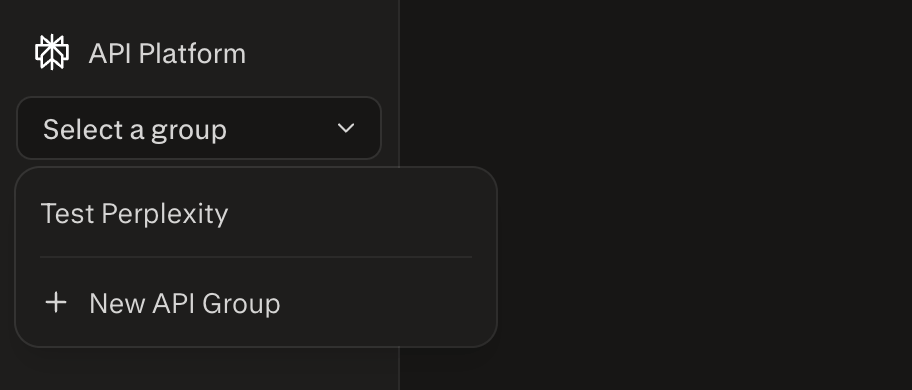
Access Project Settings
Click Settings in the left sidebar under Project.
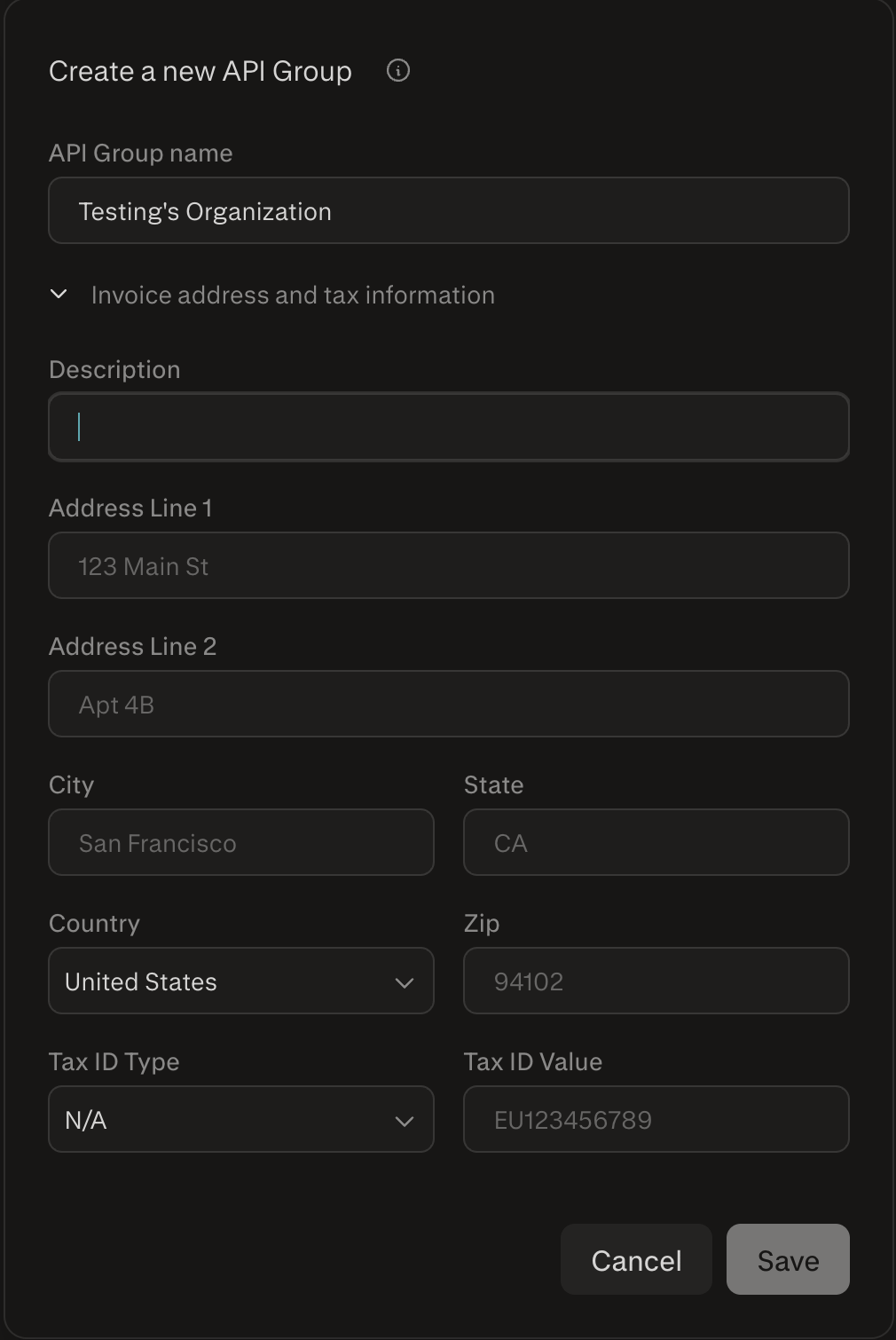
Complete Organization Details
Fill out your organization's name, address, and tax details.
Billing and Payment Methods
Section titled “Billing and Payment Methods”How Billing Works
Section titled “How Billing Works”The Perplexity API uses a credit-based billing system:
- Credits are purchased in advance and used for API calls
- Different models consume different amounts of credits per request
- Usage is charged based on tokens processed and search queries made
- Automatic top-up can be enabled to avoid service interruptions
Setting Up Payment
Section titled “Setting Up Payment”Access Billing Dashboard
Navigate directly to your API billing dashboard to manage payment methods, view usage, and configure billing settings.
Go to Billing
Navigate to Billing
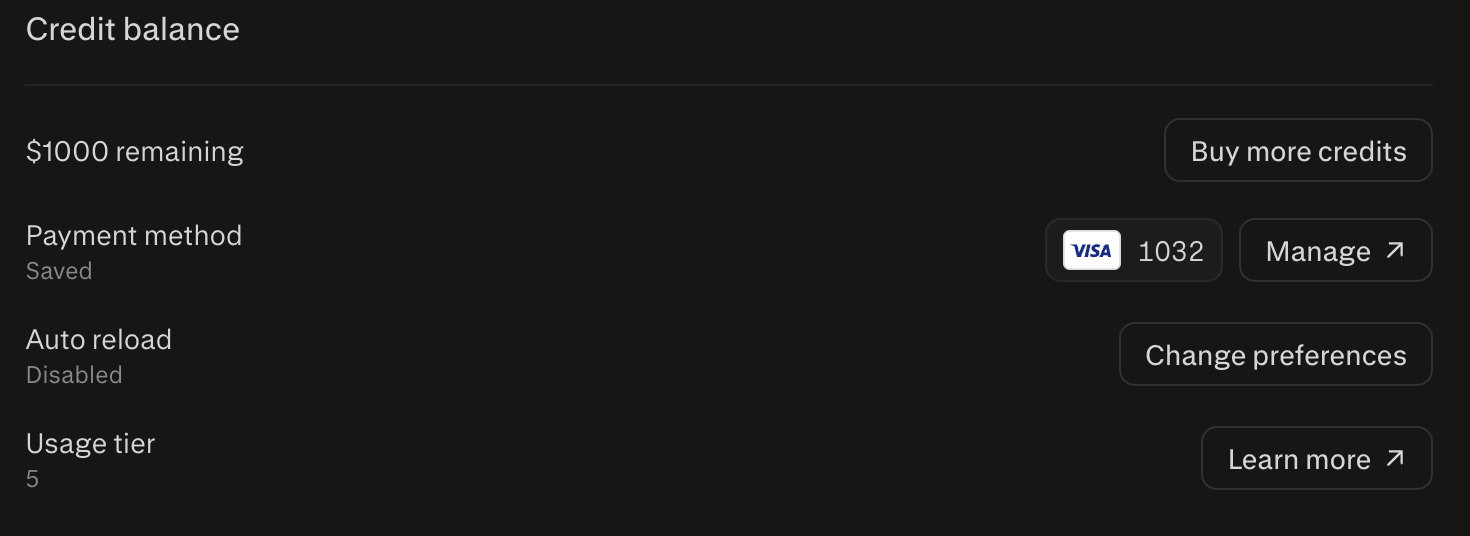
Click Billing in the left sidebar. This page shows your credit balance, payment method, usage chart, and billing breakdown.
Add Payment Method
Click Add payment method and enter your credit card information. Payment is managed via Stripe — you can also click Manage ↗ to access the Stripe portal directly.
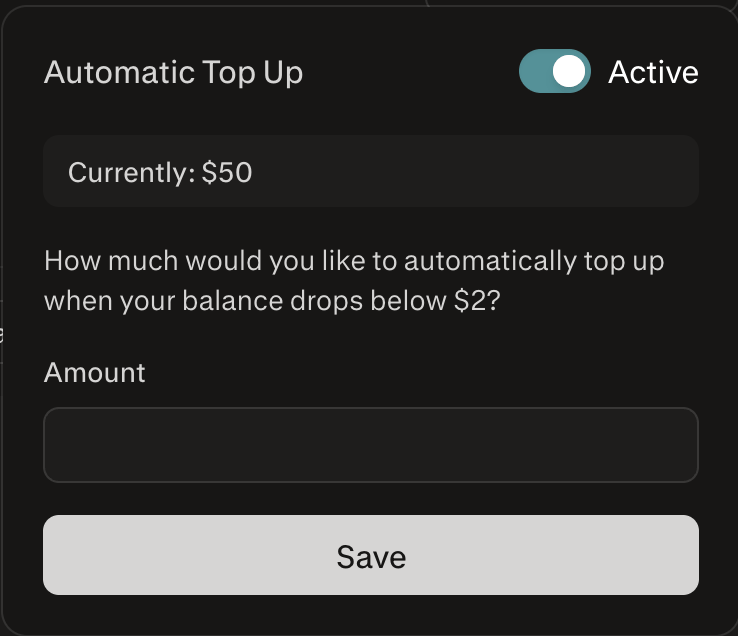
Configure Auto Reload (Recommended)
Enable automatic credit top-up by clicking Change preferences next to Auto reload.
Credit Balance
Section titled “Credit Balance”The Billing page displays your remaining credit balance prominently at the top. You can purchase additional credits at any time using the Buy more credits link.
Your current usage tier is also shown here — click Learn more ↗ for details on tier thresholds and benefits.
Managing API Keys
Section titled “Managing API Keys”What are API Keys?
Section titled “What are API Keys?”API keys are your credentials for accessing the Perplexity API. Each key:
- Authenticates your requests to the Perplexity API
- Tracks usage for attribution
- Can be revoked for security purposes
- Should be kept secure and never shared publicly
Creating an API Key
Section titled “Creating an API Key”Navigate to API Keys
Click API keys in the left sidebar.
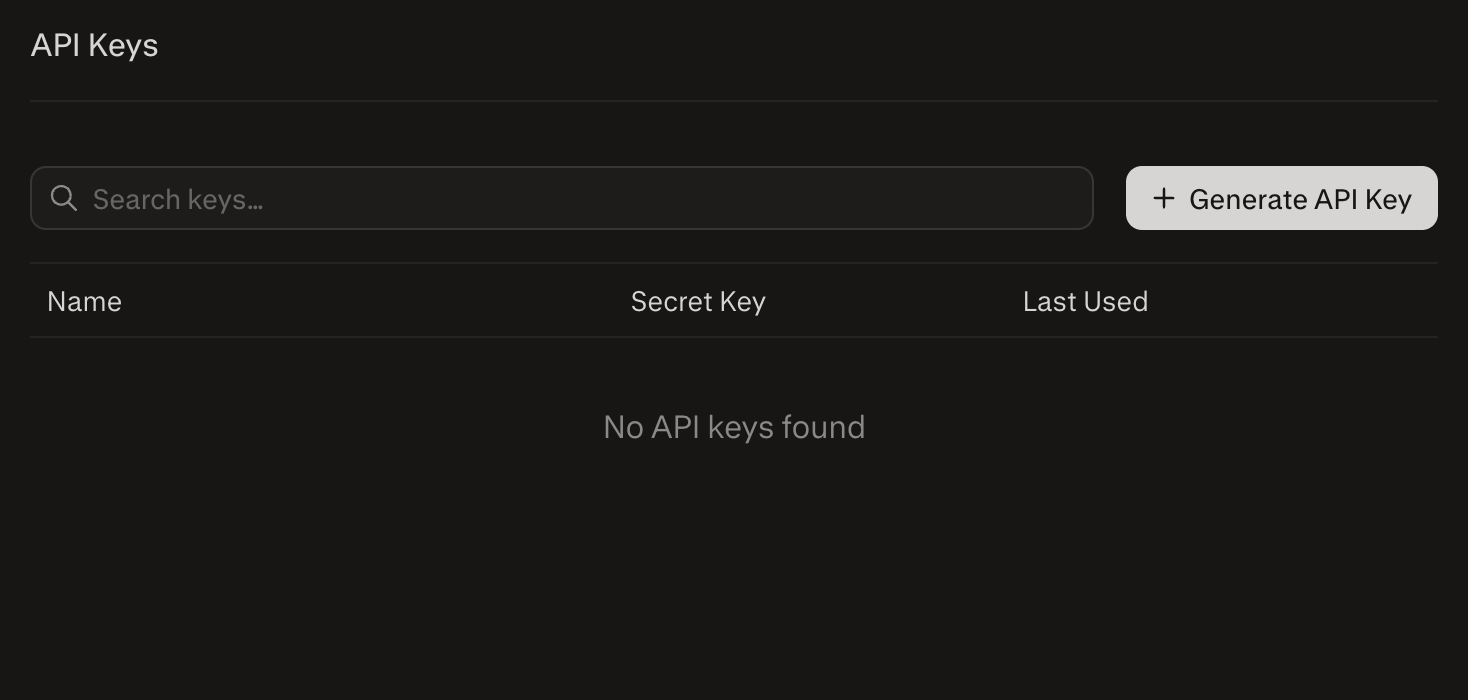
Generate New Key
Click + Generate API Key to create a new API key.
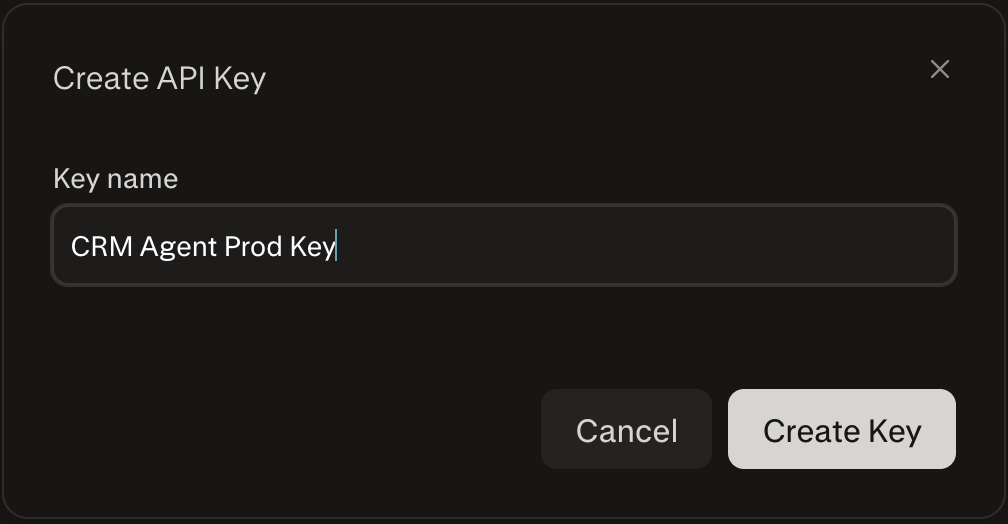
Adding and Managing Members
Section titled “Adding and Managing Members”Admins can invite team members to the organization with specific roles: Admin or Member.
Adding a Member
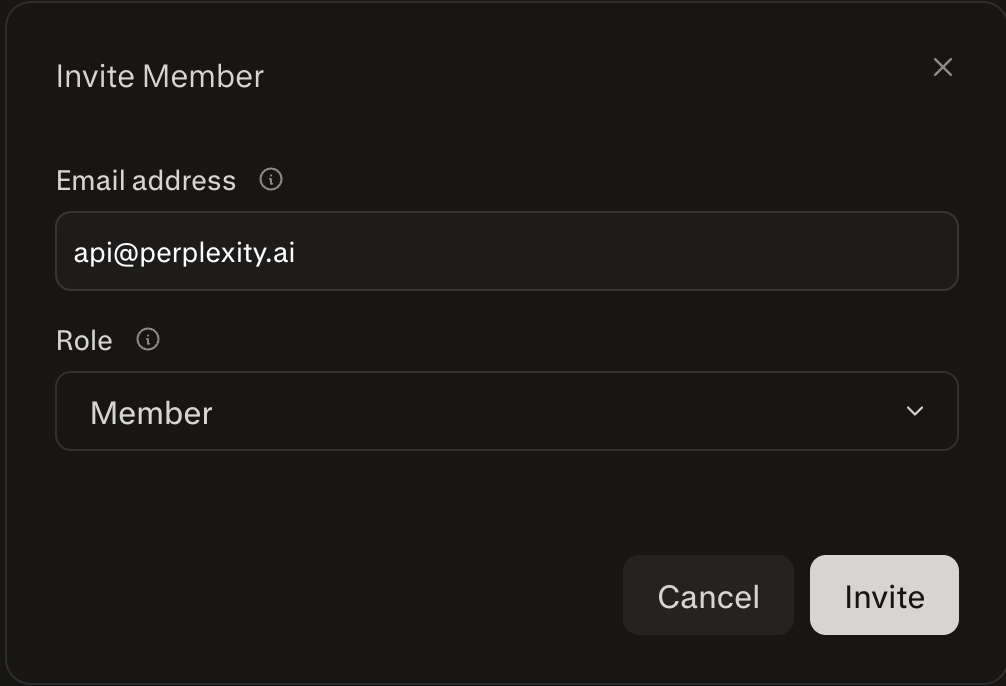
Section titled “Adding a Member”Initiate Member Invitation
Click + Add Member. Enter the user's email address and click Invite.
Member Receives Invitation
The invited user will receive an email with a link to join your project.
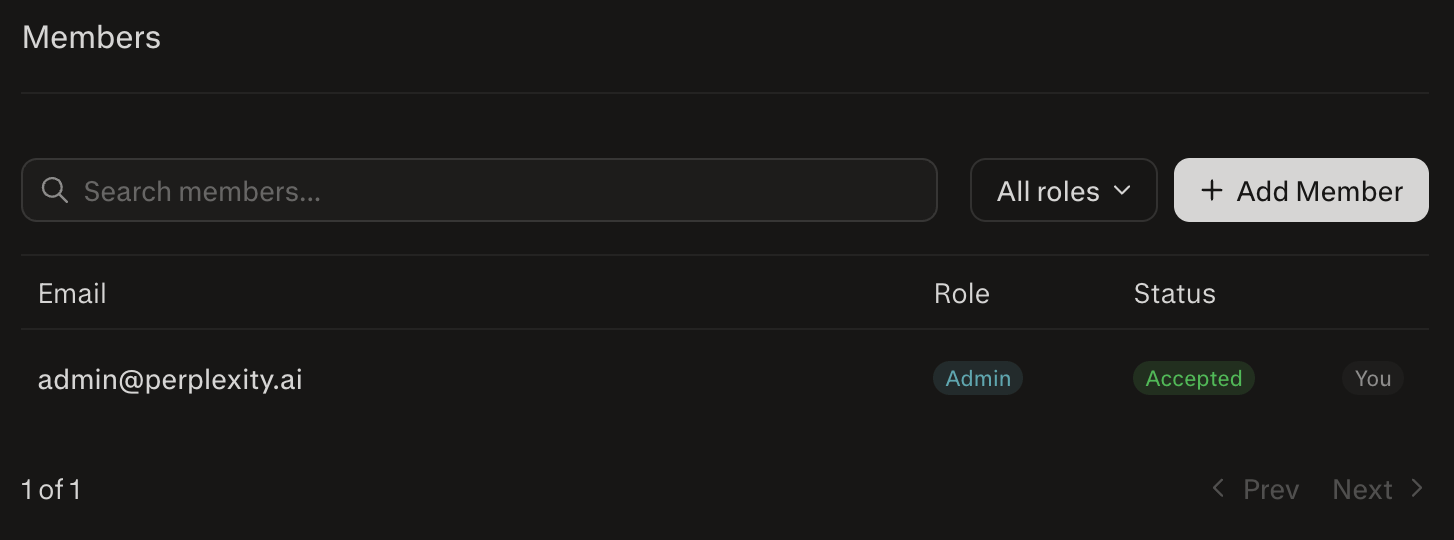
Filtering Members by Role
Section titled “Filtering Members by Role”Use the dropdown to filter your list of team members by role.
- Admin: Can invite/remove members, manage billing, and view usage data.
- Member: Cannot access the Billing page or view usage metrics in the console.
Viewing Usage Metrics
Section titled “Viewing Usage Metrics”Only Admins can monitor API usage from the Billing page in the console. If you're a Member and need usage or billing information, contact an Admin in your project.
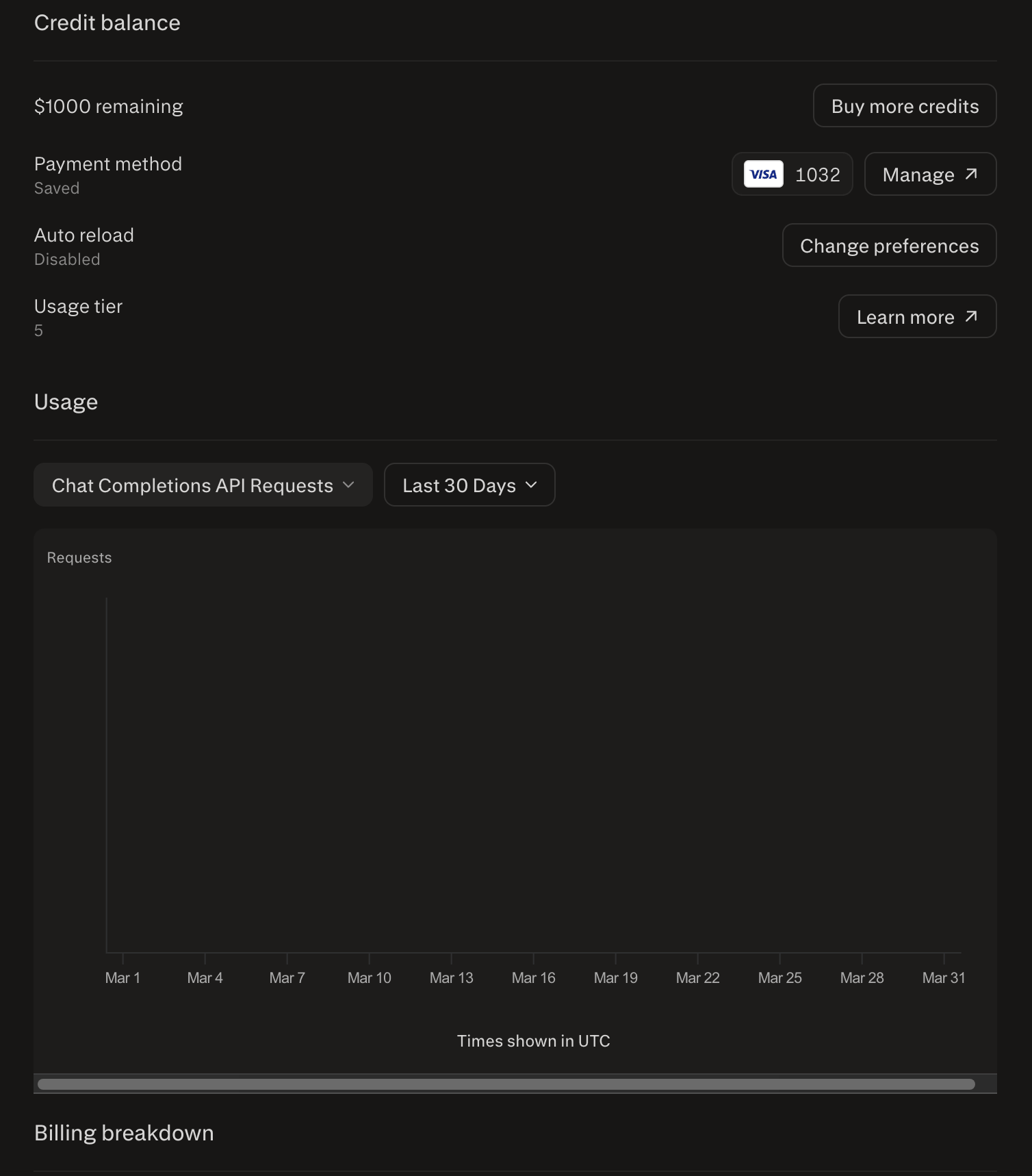
The Usage chart lets you track activity over time with the following filters:
- Metric selector: Choose from Chat Completions API Requests, Input Tokens, Output Tokens, Citation Tokens, Reasoning Tokens, Deep Research Requests Count, Search API Requests Count, or Pro Search API Requests Count
- Time range: Filter by Last 7 Days, Last 30 Days, or custom range
Below the chart, the Billing breakdown table shows a per-model breakdown of usage quantity, rate, and cost — giving you a clear picture of spend by product.
Invoice History
Section titled “Invoice History”Below the usage chart and billing breakdown on the Billing page, you'll find your Invoice history — a record of all past invoices with their date, status, and cost.
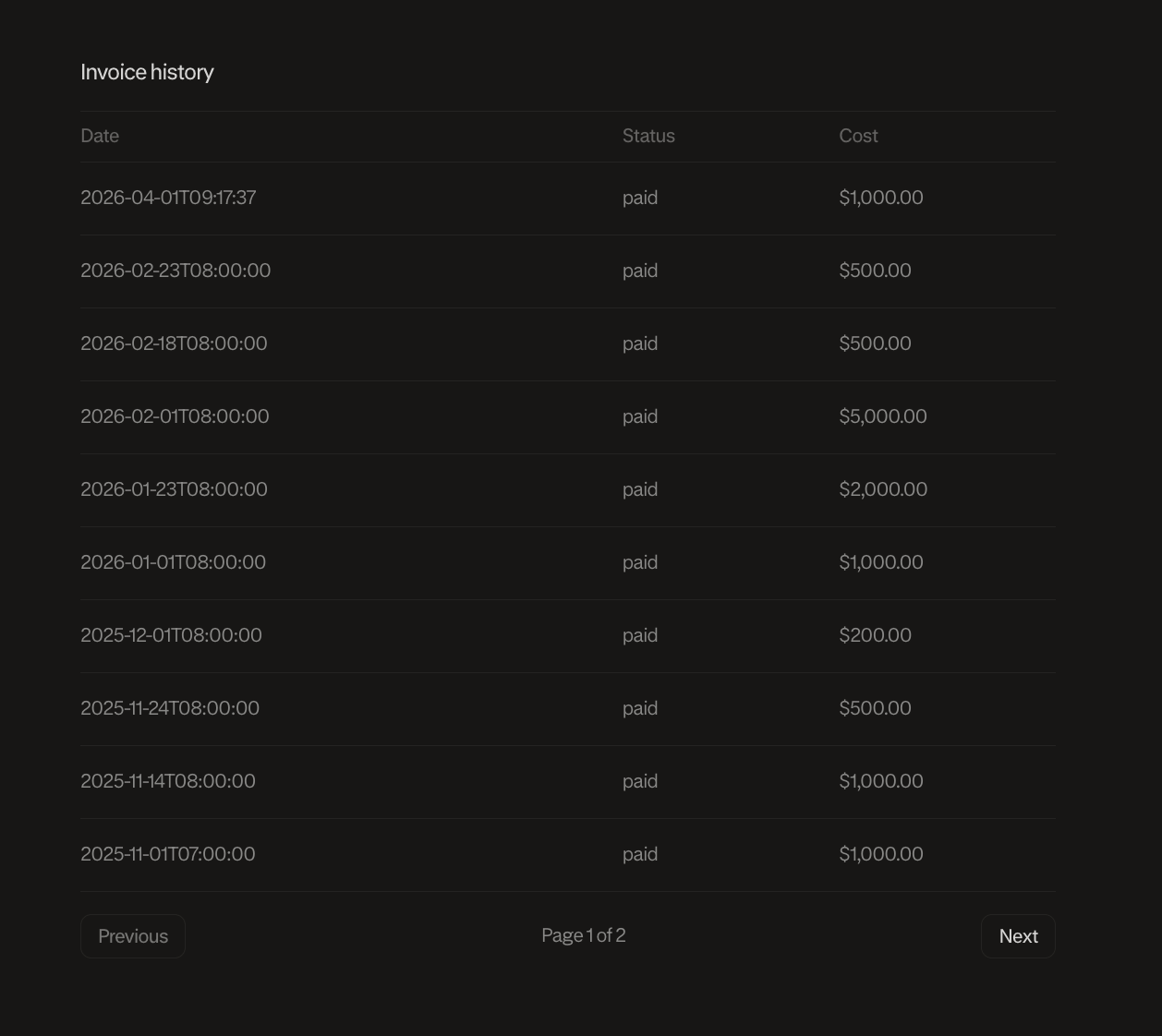
Invoices are generated automatically each billing cycle. Use the Previous and Next controls to paginate through older records.