

Signing In to the API Portal
The API Portal offers four ways to sign in. All four create or reuse the same Perplexity account — you do not need to pick one at sign-up and stick with it.
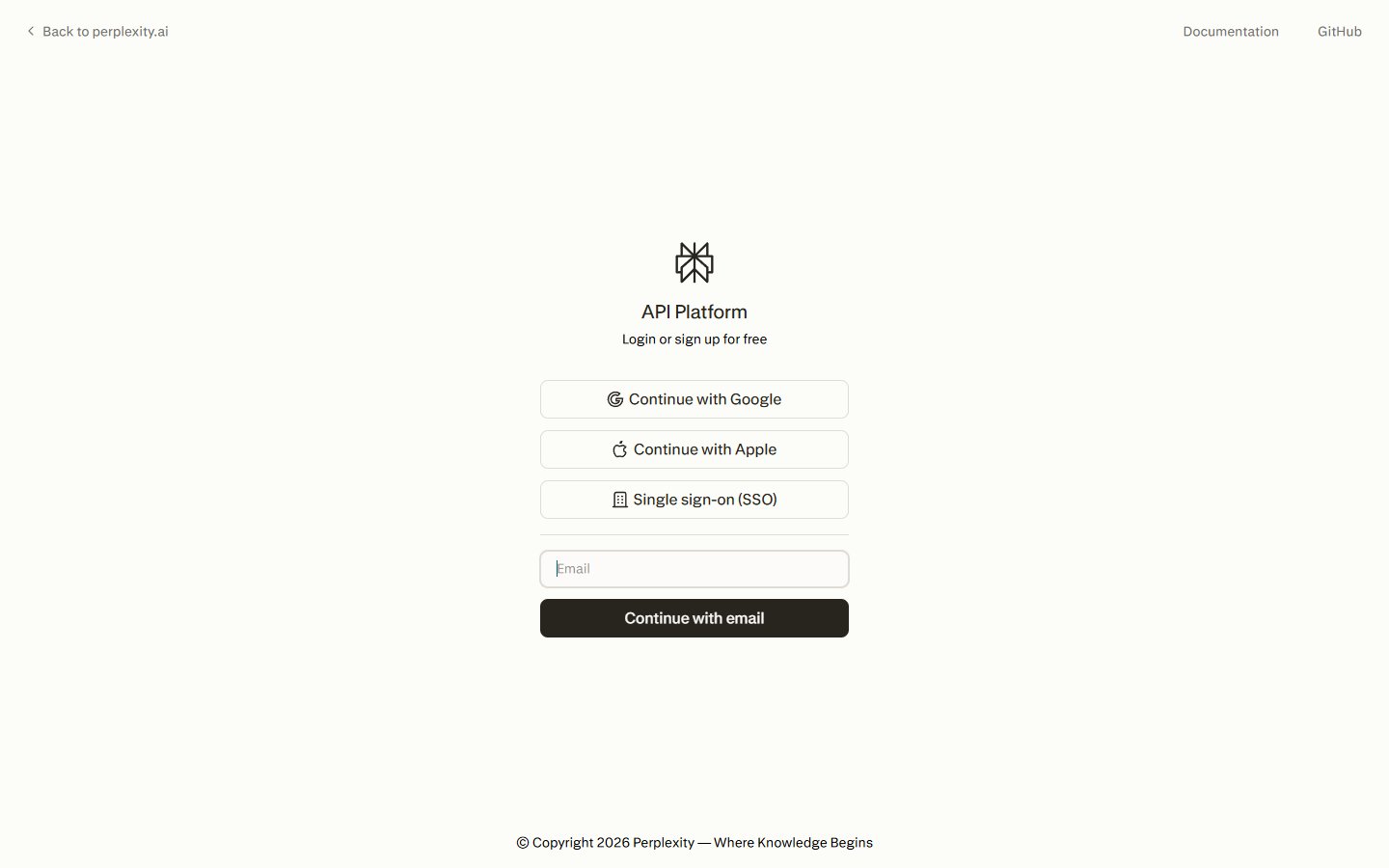
Choosing a Sign-In Option
Section titled “Choosing a Sign-In Option”| Option | Best for |
|---|---|
| Continue with Google | Individuals and teams using a Google Workspace or personal Google account. |
| Continue with Apple | Individuals who prefer Sign in with Apple, including Hide My Email. |
| Single sign-on (SSO) | Members of a Perplexity organization with SSO configured on their domain. |
| Continue with email | Anyone — sends a passwordless magic link and one-time code to your inbox. |
Continue With Google
Section titled “Continue With Google”Use Google to sign in with any Google or Google Workspace account.
Click Continue With Google
On the login page, click Continue with Google and choose the Google account you want to use.
Approve the Sign-In
Google asks you to confirm the sign-in and share your name, email, and profile picture with Perplexity. Approve to continue.
Land in the API Portal
You are returned to the API Portal signed in. If this is your first visit, the setup wizard walks you through creating a project.
Continue With Apple
Section titled “Continue With Apple”Use Sign in with Apple, including the Hide My Email relay address.
Click Continue With Apple
On the login page, click Continue with Apple and authenticate with Face ID, Touch ID, or your Apple ID password.
Choose Your Email Preference
Apple lets you share your real email or use Hide My Email to generate a private relay address. Perplexity uses whichever address Apple returns.
Land in the API Portal
You are returned to the API Portal signed in. If this is your first visit, the setup wizard walks you through creating a project.
Single Sign-On (SSO)
Section titled “Single Sign-On (SSO)”SSO lets your organization sign in through your own identity provider (Okta, Azure AD, Google Workspace SAML, and other SAML or OIDC IdPs). It works for organizations that have set up SSO on a verified domain.
Signing In With SSO
Section titled “Signing In With SSO”Click Single Sign-On (SSO)
On the login page, click Single sign-on (SSO). The form switches to a work-email prompt.
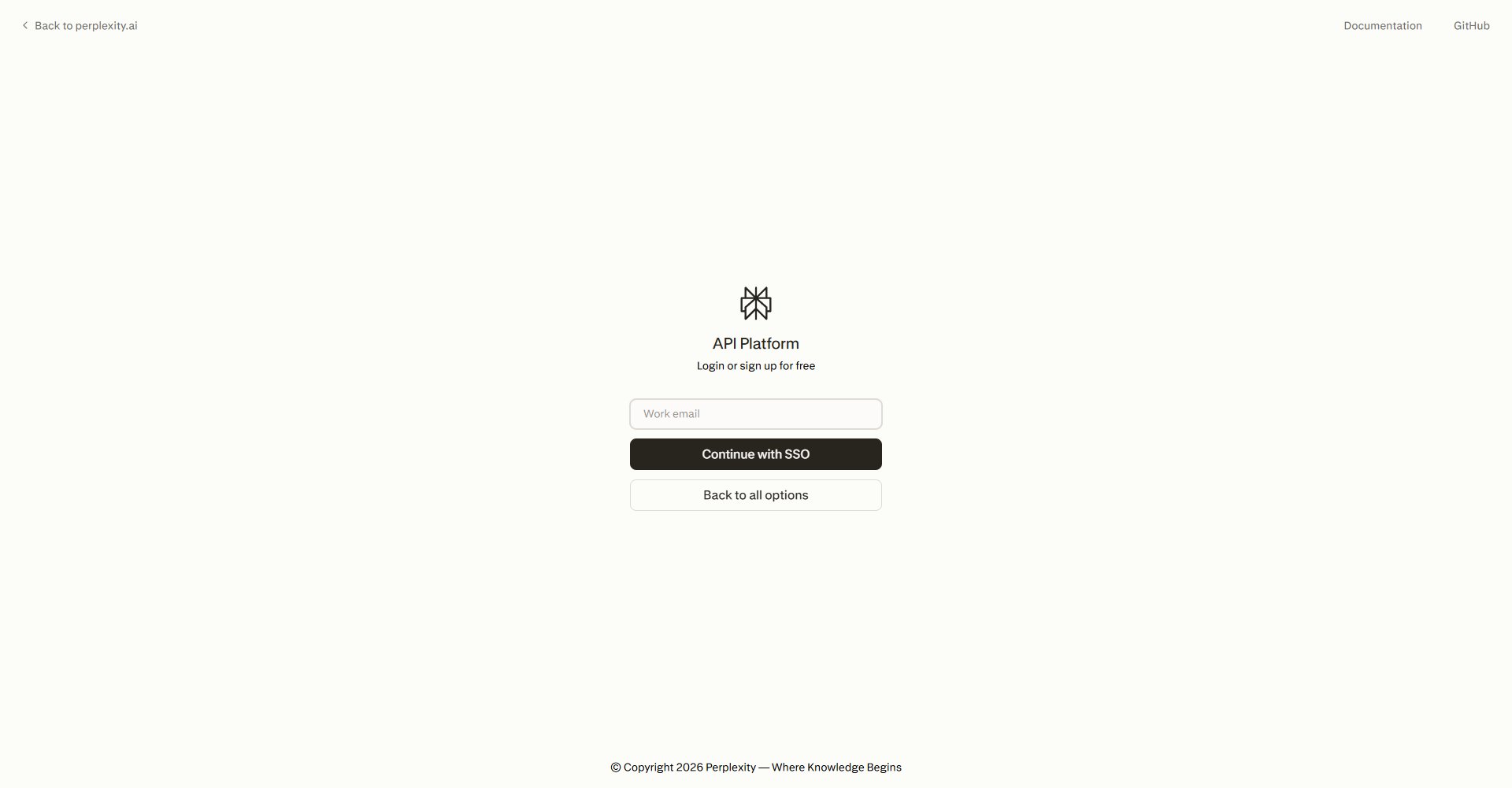
Enter Your Work Email
Enter the email address on your organization's verified domain and click Continue with SSO. Use Back to all options if you need to return to the other sign-in methods.
Authenticate With Your IdP
You are redirected to your organization's identity provider. Complete the sign-in there — including any MFA prompts — and you are returned to the API Portal.
Configuring SSO for Your Organization
Section titled “Configuring SSO for Your Organization”SSO is configured once in your organization's Perplexity organization settings — not in the API Portal — and applies to sign-in across Perplexity, including the API Portal.
For more help setting up SSO on Perplexity Enterprise, visit the Single Sign-On collection in the Perplexity Help Center.
Confirm Eligibility
Your organization must have an active organization subscription in the main Perplexity app. An active trial qualifies. If billing is not set up yet, the settings page shows "Complete payment to begin setup" instead of the enable button. There is no minimum seat count for SSO itself.
Open Identity Settings
As an organization admin, go to Settings → Identity in the main Perplexity app. You need the Admin role on the organization.
Verify a Domain
Add and verify at least one domain (for example,
yourcompany.com) that your team uses for email. Verification is done through a DNS record.Connect Your Identity Provider
Click Begin setup and follow the self-serve portal to connect your IdP. The portal supports SAML 2.0 and OIDC connections and walks you through your specific IdP. For more help, visit the Single Sign-On collection in the Perplexity Help Center.
Enable API Access for Your Organization
Make sure your organization has API access enabled so your SSO users can reach the API Portal after signing in. If members can sign in via SSO but cannot open the Portal, ask your org admin or Sales to turn on API access for the organization.
(Optional) Require SSO
Once the IdP is active, you can enable SSO required on any verified domain. When required, everyone signing in from that domain — including Google, Apple, and email attempts — is routed through your IdP.
Continue With Email
Section titled “Continue With Email”Email sign-in is passwordless. There is no password to set or remember.
Enter Your Email
Enter your email in the Email field and click Continue with email.
Check Your Inbox
You receive an email with both a magic link and a temporary sign-in code. Use whichever is more convenient — clicking the link on the same device signs you in immediately, and the code works on any device.
Land in the API Portal
Once verified, you are signed in. If this is your first visit, the setup wizard walks you through creating a project.
Switching Between Sign-In Methods
Section titled “Switching Between Sign-In Methods”You can use different sign-in methods at different times with the same account. If you first signed up with email and later click Continue with Google using the same address, Google is linked to your existing Perplexity account — your projects, keys, and billing stay in place. The same applies to Apple and to switching back to email.
Next Steps
Section titled “Next Steps”Set Up Your Project
Create your organization's workspace, add billing, and invite teammates.
Create an API Key
Generate and manage keys once your project is set up.
Make Your First Request
Send a request to the Perplexity API in Python, TypeScript, or cURL.
Review Pricing
See per-model and per-tool pricing before you start.